WordPress is beginner-friendly, but you'll need to invest some time to learn its basics. The platform's intuitive dashboard and drag-and-drop editor make it accessible, with 43% of websites using WordPress for good reason. You'll find one-click installation through most hosting providers, and the extensive library of themes and plugins lets you customize your site without coding knowledge. While you might encounter common challenges like plugin conflicts or formatting issues, WordPress offers thorough documentation and community support to help you overcome obstacles. Understanding the fundamentals will set you up for success as you explore this versatile platform's capabilities.
Key Takeaway
- WordPress's user-friendly interface and one-click installation make it accessible for beginners with no coding experience required.
- The intuitive dashboard layout provides easy navigation and quick access to essential features like posts, pages, and media.
- Built-in visual editor (Gutenberg) allows drag-and-drop content creation, eliminating the need for technical knowledge.
- Extensive learning resources, including documentation and community forums, provide support when beginners encounter challenges.
- Common technical hurdles like plugin conflicts and security issues may require some learning but are well-documented with solutions.
Getting Started With WordPress Basics
Starting with WordPress doesn't have to be complicated, even if you're completely new to website building. The platform's intuitive interface allows you to master the fundamentals through a systematic approach.
Key Initial Steps:
- Choose a reliable hosting provider that offers one-click WordPress installation
- Select and register your domain name
- Install WordPress through your hosting control panel
- Log in to your WordPress dashboard
Once you've accessed your dashboard, you'll find these essential elements:
- Posts – For creating blog content and articles
- Pages – For static content like About and Contact pages
- Media Library – To manage your images and files
- Themes – To control your site's appearance
- Plugins – To add functionality to your website
Navigation Basics:
You'll spend most of your time in the left-side menu, where all primary functions are organized logically. The top admin bar provides quick access to common tasks, while the main dashboard area displays crucial site statistics and recent activity.
Understanding these fundamentals will help you build a solid foundation for your WordPress journey, as 43% of all websites now use WordPress for its user-friendly interface and versatile capabilities.
Understanding the WordPress Dashboard
The WordPress dashboard serves as your website's command center, putting essential tools and features at your fingertips. When you log in, you'll find a well-organized interface with a vertical menu on the left side that contains all your primary navigation options.
Key Dashboard Elements:
- Posts – Where you'll create and manage blog content
- Pages – For static content like your About or Contact pages
- Media Library – Your hub for images, videos, and documents
- Comments – Manage user interactions and discussions
- Appearance – Control your site's theme and visual elements
- Plugins – Add and manage functionality extensions
- Users – Handle user roles and permissions
- Settings – Configure your site's core options
You'll notice quick-access widgets on the main dashboard screen showing recent activity, draft posts, and site statistics. The top toolbar provides instant access to common tasks like creating new content or viewing your live site. As you navigate through different sections, you'll find consistent layouts and intuitive controls that make managing your site straightforward and efficient.
Remember to use the "Screen Options" tab at the top of each page to customize which elements you see, helping you create a workspace that matches your needs.
Working With Themes and Templates
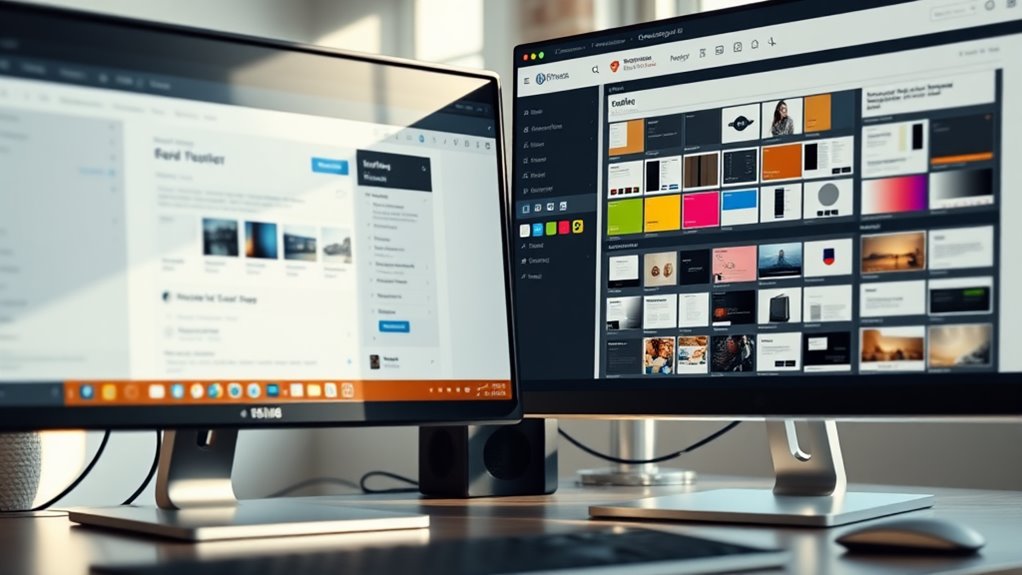
WordPress themes and templates form the foundation of your site's visual design and layout structure. When you're getting started, you'll find thousands of both free and premium themes available through the WordPress repository and third-party marketplaces.
Working with Themes:
- Navigate to Appearance > Themes in your dashboard
- Browse featured themes or use the search function
- Preview themes before activation
- Install with one click and customize immediately
Key Considerations:
- Responsiveness: Confirm your theme works across all devices
- Loading Speed: Choose themes optimized for performance
- Update Frequency: Select themes with regular maintenance
- Support Documentation: Verify available resources
Most modern WordPress themes come with customization options that you'll access through:
- Theme Customizer: Modify colors, fonts, and layouts
- Block Editor: Create and arrange content sections
- Widget Areas: Add functional elements to sidebars and footers
You don't need coding knowledge to make basic theme modifications, but understanding CSS will help you make more advanced customizations. Start with a simple, lightweight theme that matches your content needs, then gradually explore more complex design options as your skills develop.
Essential WordPress Plugins
Plugins serve as powerful add-ons that extend your site's functionality beyond WordPress's core features. To get started, you'll want to focus on essential plugins that address core website needs like security, performance, and user experience.
Must-Have WordPress Plugins:
- Yoast SEO – Helps optimize your content for search engines and improves your site's visibility
- WP Super Cache – Speeds up your website by creating static HTML files
- Wordfence Security – Protects your site from malware and hacking attempts
- WPForms Lite – Creates contact forms and surveys with drag-and-drop simplicity
- UpdraftPlus – Automatically backs up your website's content and database
When selecting plugins, you'll need to take into account three key factors:
- Regular updates by developers
- Compatibility with your WordPress version
- Impact on site loading speed
Remember to install plugins only from trusted sources, primarily the official WordPress repository or reputable developers. You can identify reliable plugins by checking their ratings, number of active installations (aim for those with 100,000+ users), and recent update history. Start with these essentials, then gradually add more plugins as your specific needs emerge.
Content Creation and Management
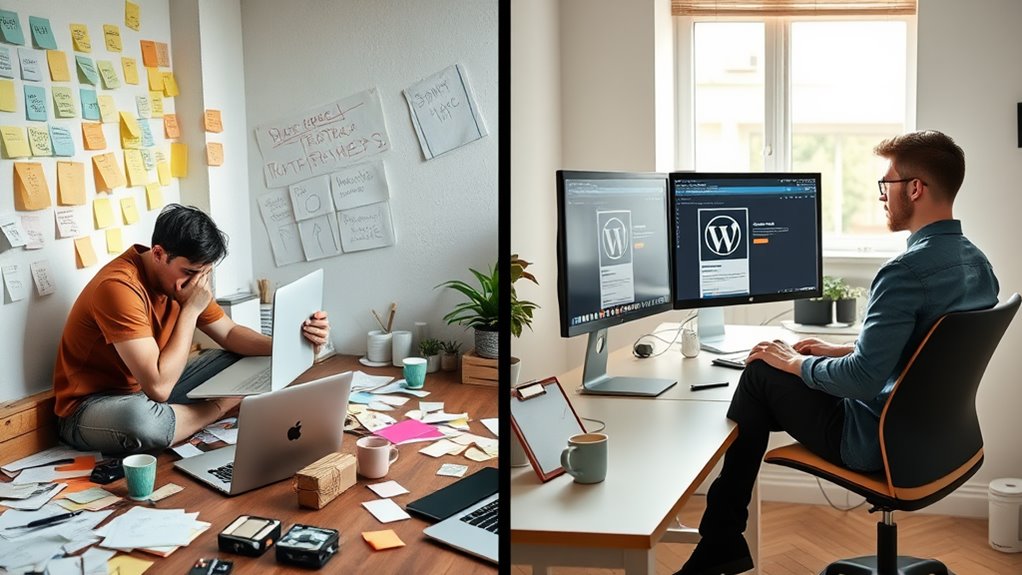
Creating and managing content in WordPress remains straightforward thanks to its intuitive block editor and built-in organizational tools. You'll find that the Gutenberg editor lets you drag and drop content blocks, including text, images, and multimedia elements, without touching a line of code.
Content Organization Features:
- Categories and tags to structure your posts systematically
- Custom post types for different content formats
- Media library for organizing images and files
- Revision history to track changes and restore previous versions
When you're working with content, you'll appreciate WordPress's scheduling capabilities, allowing you to draft posts and set future publication dates. The platform's built-in SEO features help optimize your content for search engines, while the responsive design guarantees your posts look great on all devices.
Key Management Tools:
- Quick draft feature for capturing ideas
- Bulk editing options for multiple posts
- Comment moderation controls
- User role management for team collaboration
You can easily switch between visual and code editors, making it simple to fine-tune your content's appearance. The platform's autosave feature protects your work, and you'll find the preview function invaluable for checking how your content appears before publishing.
Customizing Your WordPress Site
With WordPress themes and customization options, you'll find plenty of ways to personalize your site without coding knowledge. The platform offers over 11,000 free themes in its directory, plus thousands more premium options through third-party marketplaces.
Key Customization Features:
- Theme Customizer: Modify colors, fonts, layouts, and headers in real-time
- Widgets: Add functional elements like social media feeds, calendars, and contact forms
- Menus: Create navigation structures that guide visitors through your content
- Block Editor: Customize page layouts using drag-and-drop blocks
Advanced Personalization Options:
- Custom CSS: Add your own styling if you're comfortable with basic code
- Child Themes: Make modifications while preserving the parent theme's functionality
- Page Builders: Use plugins like Elementor or Divi for visual drag-and-drop design
You'll want to start with basic customizations through your theme's settings panel, where you can adjust fundamental elements like your site's title, tagline, and favicon. As you become more familiar with WordPress, you can explore advanced features to create a truly unique website that matches your vision and brand identity.
Common WordPress Challenges for Beginners

Most beginners face several key challenges when starting their WordPress journey. While maneuvering through these obstacles, you'll need to understand common issues and their solutions to make progress effectively.
Key Technical Challenges:
- Plugin conflicts, which affect 32% of new WordPress users
- Security vulnerabilities, particularly with outdated themes and plugins
- Database management and backup procedures
- Understanding PHP errors and troubleshooting steps
Content Management Hurdles:
- Media library organization and file size limitations
- Categories vs. tags implementation
- Formatting inconsistencies between visual and text editors
- Managing page hierarchies and menu structures
You'll likely encounter these specific roadblocks:
- The wp-config.php file might need manual configuration
- Your hosting environment may restrict certain plugin installations
- Database tables could become bloated, slowing down your site
- Theme customization might require basic CSS knowledge
To overcome these challenges, you'll need to utilize WordPress's extensive documentation, community forums, and built-in help resources. Remember that each obstacle presents a learning opportunity, and you'll become more proficient as you address each issue systematically.
Conclusion
While you've likely convinced yourself that WordPress is an insurmountable challenge, you'll find it's ironically one of the most beginner-friendly platforms you'll encounter. Despite those initial moments of confusion staring at your dashboard, you're now equipped with the fundamentals to create a professional website. Remember, every WordPress expert was once exactly where you are, probably also wondering why they didn't start sooner.